Are you a busy US gamer looking to share your passion with the world but feel overwhelmed by the technicalities of live streaming? This comprehensive guide on how to stream on YouTube Gaming is crafted specifically for you. Many gamers, averaging around 36 years old and often balancing jobs and family, find themselves short on time yet eager to connect and unwind through gaming. They value clear, concise information that helps them optimize their setup without breaking the bank or wading through endless hype. We'll demystify the process of streaming on YouTube, from essential equipment and software choices to going live and engaging your audience. Discover practical solutions to common pain points like performance issues, budget-friendly hardware upgrades, and maintaining a healthy work-life-gaming balance. Learn to build a thriving community and share your gaming journey effectively on YouTube Gaming, making the most of your limited free time. This guide ensures you stay current with 2026 streaming trends and master the art of sharing your gameplay.
What is the absolute first step to start streaming on YouTube Gaming?
The very first step is to verify your YouTube channel for live streaming. This typically involves a simple phone number verification and can take up to 24 hours for YouTube to enable the feature. Once verified, you'll have access to the live streaming dashboard and can begin setting up your software and equipment.
What software do most YouTube Gaming streamers use, and is it free?
Most YouTube Gaming streamers, especially beginners and those on a budget, use free software like OBS Studio or Streamlabs Desktop. OBS Studio is highly customizable and powerful, while Streamlabs Desktop offers a more user-friendly interface with built-in overlays. Both are excellent choices for getting started without any upfront cost.
Can I stream console games (like PlayStation or Xbox) directly to YouTube Gaming?
Yes, you can stream console games to YouTube Gaming, but you'll typically need a capture card. Devices like the Elgato HD60S+ connect between your console and your computer, allowing your streaming software (OBS, Streamlabs) to capture the console's video and audio feed. Some newer consoles offer limited direct streaming capabilities, but a capture card provides more control and quality.
How important is my internet upload speed for a smooth YouTube stream?
Your internet upload speed is critically important for a smooth YouTube Gaming stream. A low upload speed will result in a choppy, pixelated, or frequently buffering stream, regardless of your computer's power. Aim for at least 5-10 Mbps upload for reliable 1080p 60fps streaming, though even 3-5 Mbps can work for 720p. Run a speed test to check your current capabilities.
What are the best times to stream on YouTube Gaming to reach a US audience?
The best times to stream on YouTube Gaming for a US audience often align with evenings and weekends when people are typically free from work or school. Peak viewing hours are usually from 6 PM to 10 PM ET/PT on weekdays and throughout the day on weekends. However, consistency is more important than hitting exact peak times, as your dedicated audience will learn your schedule.
How can busy gamers with limited time still grow a YouTube Gaming channel?
Busy gamers can absolutely grow a YouTube Gaming channel by focusing on consistency and quality over quantity. Schedule dedicated, shorter stream times (1-2 hours) a few times a week. Repurpose stream highlights into shorter, engaging YouTube Shorts or edited videos for your main channel. Engage with your community efficiently via Discord or quick chat interactions during streams. Prioritizing efficiency and smart content creation makes growth achievable even with a tight schedule.
Is it worth it to invest in a green screen for YouTube Gaming streams?
Investing in a green screen can significantly enhance the professional look of your YouTube Gaming stream, but it's not a strict necessity for beginners. It allows you to use 'chroma key' effects in your streaming software to remove your background and superimpose yourself directly into the gameplay or a custom overlay, creating a cleaner, more immersive viewer experience. If budget allows and you want to elevate your production value, it's a worthwhile upgrade after securing basic equipment.
Are you a dedicated gamer, perhaps balancing a demanding job or family life, who dreams of sharing your epic playthroughs, strategic wins, or cozy game sessions with a wider audience? You're not alone. Many US gamers, with an average age around 36, find solace and connection in gaming, often clocking in 10+ hours a week. The idea of live streaming on YouTube Gaming is exciting, but the technical jargon, equipment choices, and sheer amount of information can feel like another boss battle you're not ready for. The good news? It doesn't have to be complicated or expensive. This guide is your trusted co-op partner, designed to simplify how to stream on YouTube Gaming, helping you conquer common setup issues, optimize your performance without buying all new gear, and connect with fellow gamers who appreciate genuine content without the unnecessary hype. We'll show you how to leverage YouTube's massive platform to share your passion, build a community, and even unwind, all while respecting your valuable time and budget. Let's get you live and thriving!
The landscape of gaming is constantly evolving, and live streaming has become a cornerstone of the experience. With 87% of US gamers regularly engaging with their favorite titles, and social gaming trends skyrocketing, sharing your unique perspective on YouTube Gaming is more accessible and rewarding than ever. Whether you're into the latest AAA titles, exploring indie gems, or just chilling with friends in a popular cross-play game, YouTube offers a robust platform for your content. We'll walk through everything from the absolute basics to pro tips that ensure your stream looks and sounds great, even if you're working with a limited setup. Get ready to transform your gaming sessions into engaging broadcasts that resonate with an audience seeking authentic, fun, and skill-building entertainment.
How Do I Start Streaming On YouTube Gaming From Scratch?
Getting started with streaming on YouTube Gaming involves a few key steps that even busy gamers can tackle. First, ensure your YouTube channel is verified for live streaming, which usually requires a phone number and can take up to 24 hours to activate. Next, you'll need streaming software. For beginners, OBS Studio is a powerful free option, or Streamlabs Desktop offers a more user-friendly interface. Once you have your software, connect it to your YouTube channel by linking your account or using a stream key. Finally, set up your audio and video sources (webcam, microphone, game audio) within your chosen software. It sounds like a lot, but most programs guide you through these initial configurations, making the 'how to stream on youtube gaming' process surprisingly straightforward for those eager to jump in.
What Essential Equipment Do I Need For A Quality YouTube Gaming Stream On A Budget?
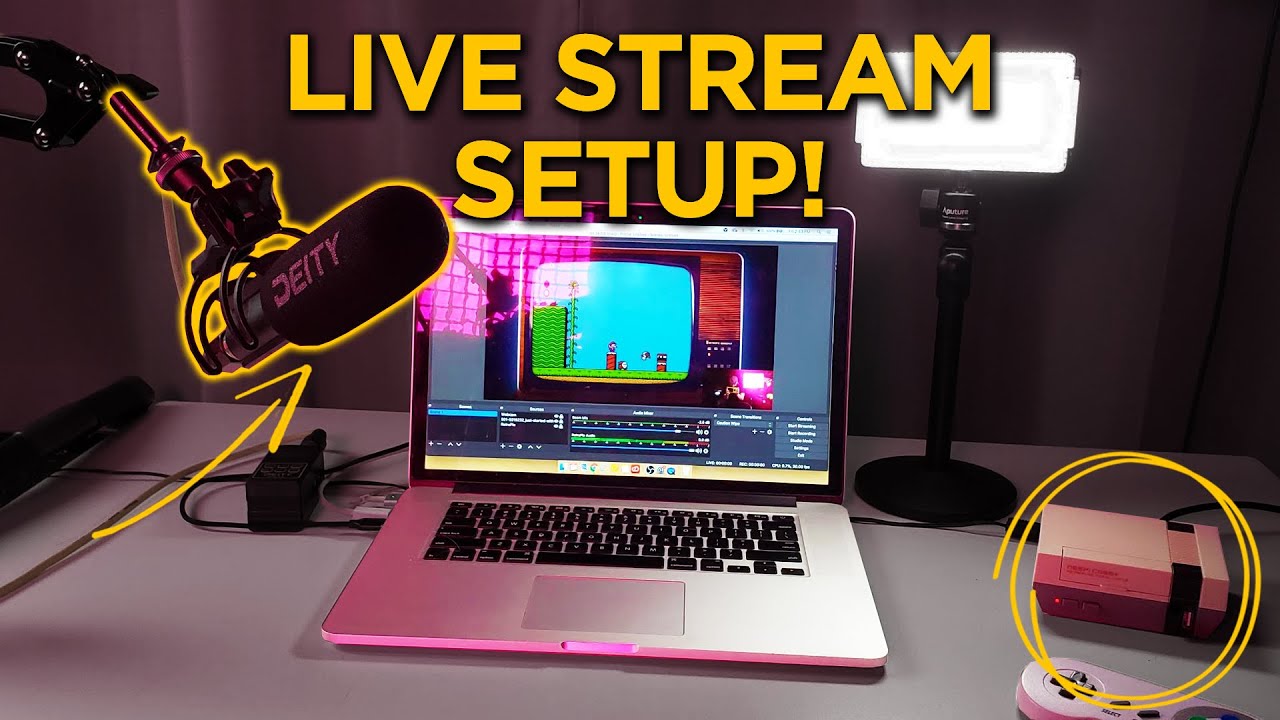
You don't need a professional studio to start a quality YouTube Gaming stream. The core essentials are a decent computer (PC or Mac) capable of running your game and streaming software simultaneously, or a modern console. For audio, a good USB microphone is crucial, often costing under $100. Brands like Blue Yeti or Razer Seiren Mini offer excellent sound quality for their price. A basic webcam (e.g., Logitech C920) is sufficient for showing your face, typically around $60-80. If you're streaming console games, a capture card (like Elgato HD60S+) is necessary, ranging from $100-200. Investing in a stable internet connection with good upload speed is also vital to avoid choppy streams. Prioritizing these few items will give you a solid foundation without breaking your budget, allowing you to gradually upgrade as your channel grows.
Which Streaming Software Is Best For Beginners On YouTube Gaming?
For beginners learning how to stream on YouTube Gaming, two free and popular options stand out: OBS Studio and Streamlabs Desktop. OBS Studio is an open-source powerhouse, offering immense customization and control. While its interface might seem daunting initially, countless tutorials exist to guide you. It's excellent for those who like to tinker and optimize. Streamlabs Desktop, built on OBS, offers a more streamlined, user-friendly experience with integrated alerts, overlays, and widgets, making it quicker to set up an attractive stream. It's often favored by new streamers for its ease of use. Both are fantastic choices; Streamlabs Desktop might edge out OBS for absolute beginners due to its intuitive design, while OBS Studio is the go-to for advanced control and resource efficiency. Give both a try to see which feels more comfortable for your streaming journey.
How Can I Optimize My Stream Quality Without Breaking The Bank?
Optimizing your YouTube Gaming stream quality on a budget focuses on software settings and your internet connection rather than expensive hardware. First, ensure your internet upload speed is sufficient – at least 5-10 Mbps for 1080p streaming. In your streaming software, lower your output resolution (e.g., from 1080p to 720p) if you experience lag; 720p at 60fps still looks fantastic. Experiment with your bitrate; for 1080p at 60fps, 4500-6000 kbps is common, while 720p at 60fps can look great at 2500-4000 kbps. Use a hardware encoder (NVENC for Nvidia GPUs, AMF/VCE for AMD) if available, as it offloads the encoding from your CPU, improving game performance. Finally, ensure your game settings aren't maxed out if your PC struggles; lowering a few graphically intensive options can free up resources for your stream. These adjustments are key to a smooth streaming experience, proving that a high-quality stream doesn't always demand premium equipment.
What Are YouTube's Requirements And Best Practices For Live Streaming?
YouTube has straightforward requirements for live streaming. Your channel must be verified via phone number, and you generally need no active copyright strikes. For mobile streaming, you'll need at least 50 subscribers. When it comes to best practices for how to stream on YouTube Gaming, consistency is crucial. Try to stream on a regular schedule so your audience knows when to find you. Engage with your chat, even if it's just a few viewers; acknowledge comments and questions. Use clear, descriptive titles and engaging thumbnails for your streams to attract clicks. Optimize your stream tags with relevant keywords to improve discoverability. For quality, aim for 1080p 60fps if your internet and hardware allow, but prioritize a stable, artifact-free stream over resolution. Remember to enable monetization options and Super Chat if eligible, as these can provide support from your community.
How Do I Engage With My Audience Effectively While Gaming?
Engaging your audience is a cornerstone of building a successful YouTube Gaming channel, especially for busy gamers who value social interaction. Start by acknowledging every chat message you see – even a quick
Easy YouTube Gaming Stream Setup, Budget Streaming Gear, Best Beginner Streaming Software, Optimize Stream Quality, Engaging Live Chat Tips, Console Streaming to YouTube, Promote Your Gaming Channel, Balance Gaming and Life, Troubleshooting Live Stream Issues
35

How To Stream PC Games On YouTube Using OBS 2026 YouTube . Top YouTube Gaming Channels February 2026 Nintendo ESL And . Mobile Se Gaming Youtube Channel Kaise Banaye How To Open Gaming . Top 5 Best Ways To Live Stream Mobile Games On YouTube YouTube . Top YouTube Gaming Streamers Of 2025 IShowSpeed Pekora Ch Typical



How To Livestream On YouTube Gaming Mobile 2026 YouTube . How To Live Stream Games On YouTube Cach Live Stream Game Len Youtube 013910781 . How To Start A Gaming YouTube Channel 2025 Guide 20250829 1447 Gaming.webp. How To Start A YouTube Gaming Channel In 2026 YouTube . What Is YouTube Gaming A Stream Hatchet YouTube Gaming Basics 1



Steps To Streaming Games On YouTube How To Stream Games On YouTube In 2026 Step By Step Beginners Guide . How To Stream On YouTube In 2026 Complete Setup Guide 1 . How To Stream Games To YouTube 2026 Complete Setup Guide Featured Image 1arztby0 . How To Stream Games To YouTube 2026 Complete Setup Guide Gravatar . How To Start A Gaming YouTube Channel In 2025 Complete Guide To


.png)


How To Live Stream Game On YouTube YouTube . How To Stream Games On Youtube Best Method YouTube . YouTube S 2026 Playbook New Features That Will Shape The Future Of New Youtube Features Compressed (1) . How To Stream To YouTube Gaming Best Guide Ever YouTube . HOW TO LIVESTREAM ON YOUTUBE GAMING YouTube



How To Do Gaming Live Stream On YouTube With Mobile In 2024 Mobile . YouTube Paid Creators 100 Billion In Four Years Here Are Their YouTube 2026 Featured 1300x750 . What Is YouTube Gaming A Stream Hatchet YouTube Gaming Basics 4 1024x576 Jpg.webp. HOW TO LIVE STREAM ON YOUTUBE GAMING YouTube . How To Stream On Youtube Gaming OBS Tutorial YouTube



How To Stream Pc Games On YouTube Using Obs YouTube . How To Make Vertical Animated Gaming Overlay For YouTube Shorts Live . Top YouTube And Video Streaming Platforms To Try In 2026 Frame 1686553791 . How To Set Up A Live Stream With OBS Studio A Guide To Twitch . Can You Play Steam Games On Xbox Consoles GAMES IN 2026

:max_bytes(150000):strip_icc()/014_how-to-live-stream-with-youtube-gaming-4176161-5bd77be1c9e77c0026317f17.jpg)

How To Stream Minecraft On YouTube Gaming YouTube . How To Live Stream With YouTube Gaming 014 How To Live Stream With Youtube Gaming 4176161 . How To Live Stream Mobile Games On TikTok TikTok Gaming Livestream . How To Go Live With YouTube Gaming Appinside . How To Live Stream With YouTube Gaming Setupgamers Youtube Gaming Cover Photo 768x512